← Browse tech dealsTECH DEAL COMPASS
How to choose a laptop for work and study
Shopping for a laptop for college, remote work, or daily productivity? In 2026, Copilot+ AI processors, all-day Arm battery life, soldered LPDDR5X memory, and 16:10 displays have transformed the market. Here is how to choose the right hardware without overpaying—backed by live, verified deals from our catalog.
Tech Deal Compass editorial · Hardware Buying Guide (Updated October 19, 2026) · 8 min read
The 2026 Reality Check: 3 Things That Changed Everything
1. 16GB is the non-negotiable floor: Windows 11 Copilot+, web browser tabs with AI integrations, and background Zoom or Teams calls consume 9GB to 11GB of RAM on startup alone. Buying 8GB in 2026 guarantees early paging stutter.
2. The Soldered RAM Trap: Over 85% of modern laptops solder their LPDDR5X memory directly to the motherboard. You cannot pop off the bottom plate and add another $30 RAM stick later. The RAM you buy at checkout is the RAM you are stuck with forever.
3. Silicon Choice (Arm vs. x86): Qualcomm Snapdragon X laptops deliver revolutionary 16–20+ hour battery life, but check your required coursework and company software for exam proctors, legacy VPNs, or CAD compatibility before choosing Arm over traditional Intel or AMD chips.
Workload & Major Specification Matrix (2026 Baseline)
Different fields of study and job roles place vastly different demands on hardware. Use our editorial benchmark recommendations before setting your budget:
| Workload & Major | Recommended Processor | RAM Requirement | SSD Storage | Display Recommendation | Real-World Battery |
|---|
| General College, Humanities & Remote Office | Snapdragon X Plus / Intel Core Ultra 5 / AMD Ryzen 5 | 16 GB (Soldered LPDDR5X) | 512 GB SSD | 14" 16:10 FHD+ (300+ nits) | 12 – 18 Hours |
|---|
| Finance, Accounting & Business Analytics | Intel Core Ultra 7 / AMD Ryzen 7 | 16 GB – 32 GB | 512 GB – 1 TB SSD | 15.6" – 16" with dedicated Numpad | 9 – 14 Hours |
|---|
| Computer Science, Software Dev & STEM | Intel Core i5/i7-H or Core Ultra / AMD Ryzen 7 (x86-64) | 16 GB – 32 GB | 1 TB SSD (Dual OS / VMs) | 14" – 16" 2K or 2.8K (100% sRGB) | 8 – 12 Hours |
|---|
| Engineering (CAD/SolidWorks) & Digital Arts | Intel Core Ultra 7/9 / AMD Ryzen AI 9 + Dedicated GPU | 32 GB | 1 TB – 2 TB NVMe SSD | 16" 2.5K / 3.2K OLED or IPS (DCI-P3 100%) | 6 – 9 Hours |
|---|
Processor Platforms in 2026: Snapdragon X vs. Intel vs. AMD
1. Qualcomm Snapdragon X (Elite & Plus) — The Battery Champions
Built on Arm architecture, Snapdragon X chips bring true smartphone-like efficiency to Windows laptops. You can easily achieve 16 to 20+ hours of actual, unplugged productivity. They wake instantly and generate virtually zero heat under web browsing and typing.
⚠️ Important Compatibility Check for Students & Corporate Users
Windows on Arm relies on the Prism emulation layer for older x86 applications. While Microsoft 365, Chrome, Slack, and Zoom run natively, certain university exam software (e.g. Respondus LockDown Browser, Proctorio), kernel-level corporate VPNs, and legacy CAD software may refuse to run. Always confirm with your IT department or university handbook before buying an Arm laptop.
2. Intel Core Ultra (Series 1 & Series 2 “Lunar Lake”)
Intel's latest architecture pairs performance cores with dedicated Low-Power Island efficiency cores and beefed-up Intel Arc graphics. They offer 100% universal software compatibility across all Windows programs, exam proctoring engines, and virtualization tools, while dramatically closing the battery gap with Arm.
3. AMD Ryzen (7000 / 8000 & Ryzen AI 300 Series)
AMD continues to dominate heavy multi-core throughput and integrated Radeon graphics. If your day involves compiling code, rendering Blender models, or crunching giant datasets alongside daily study, AMD Ryzen chips deliver peak performance without thermal throttling.
Memory and Storage: Why You Cannot Afford to Skimp in 2026
Because memory prices spiked in 2026 due to AI datacenter demand, some budget laptops still ship with 4GB or 8GB of RAM. Unless your budget is strictly constrained to under $350 for light note-taking, insist on 16GB of RAM:
- RAM vs. SSD Swapping: When an 8GB laptop runs out of memory, Windows automatically creates a pagefile on your SSD. This causes sluggish typing latency, tab freezing, and accelerates flash memory wear.
- 512GB SSD Minimum: Windows 11 updates, restore points, and local caches consume ~80GB immediately. Adding Microsoft 365, course textbooks, project archives, and personal photos fills a 256GB drive in less than a year. A 512GB SSD is the true sweet spot for work and study.
Display Ergonomics: Why 16:10 and 300+ Nits Matter
You will stare at this display for 6 to 10 hours every single day. Do not buy a laptop based solely on processor benchmarks while ignoring display quality:
- 16:10 Aspect Ratio (Crucial): Older 16:9 widescreen displays feel cramped vertically. A modern 16:10 screen provides ~11% more vertical lines of resolution, letting you view full document pages, research PDFs, and multiple browser windows with far less scrolling.
- The 250-Nit Trap: Cheaper laptops often cut costs with 250-nit brightness panels. In a sunlit classroom, library atrium, or office with fluorescent lighting, 250 nits looks dim and washed out. Look for 300 to 400 nits minimum with an anti-glare matte finish.
- 100% sRGB vs. 45% NTSC: Budget displays frequently use 45% NTSC color, which makes photos and video look lifeless. For design, media work, and general visual comfort, ensure the panel specifies 100% sRGB or 72% NTSC coverage.
Portability vs. Screen Size: 13–14″ vs. 15–16″
- 13″ to 14″ (2.5 – 3.2 lbs): The ideal size for college students and mobile professionals. It fits comfortably on cramped fold-down lecture hall armrest desks, airline tray tables, and fits easily into any backpack.
- 15.6″ to 16″ (3.8 – 4.6 lbs): The right choice if your laptop stays mostly on a desk and you regularly work with spreadsheets. The wider chassis allows a dedicated numeric keypad, larger cooling heatsinks, and a more expansive multi-window workspace.
Recommended Laptops From Our Live Catalog
These deals are currently price-verified and tracked across Amazon, Best Buy, and Newegg, offering genuine hardware value for academic and professional workloads:
1. Budget Study & Essentials (Sub-$400)
For students and light office workers needing a reliable daily machine for web research, documents, and streaming:
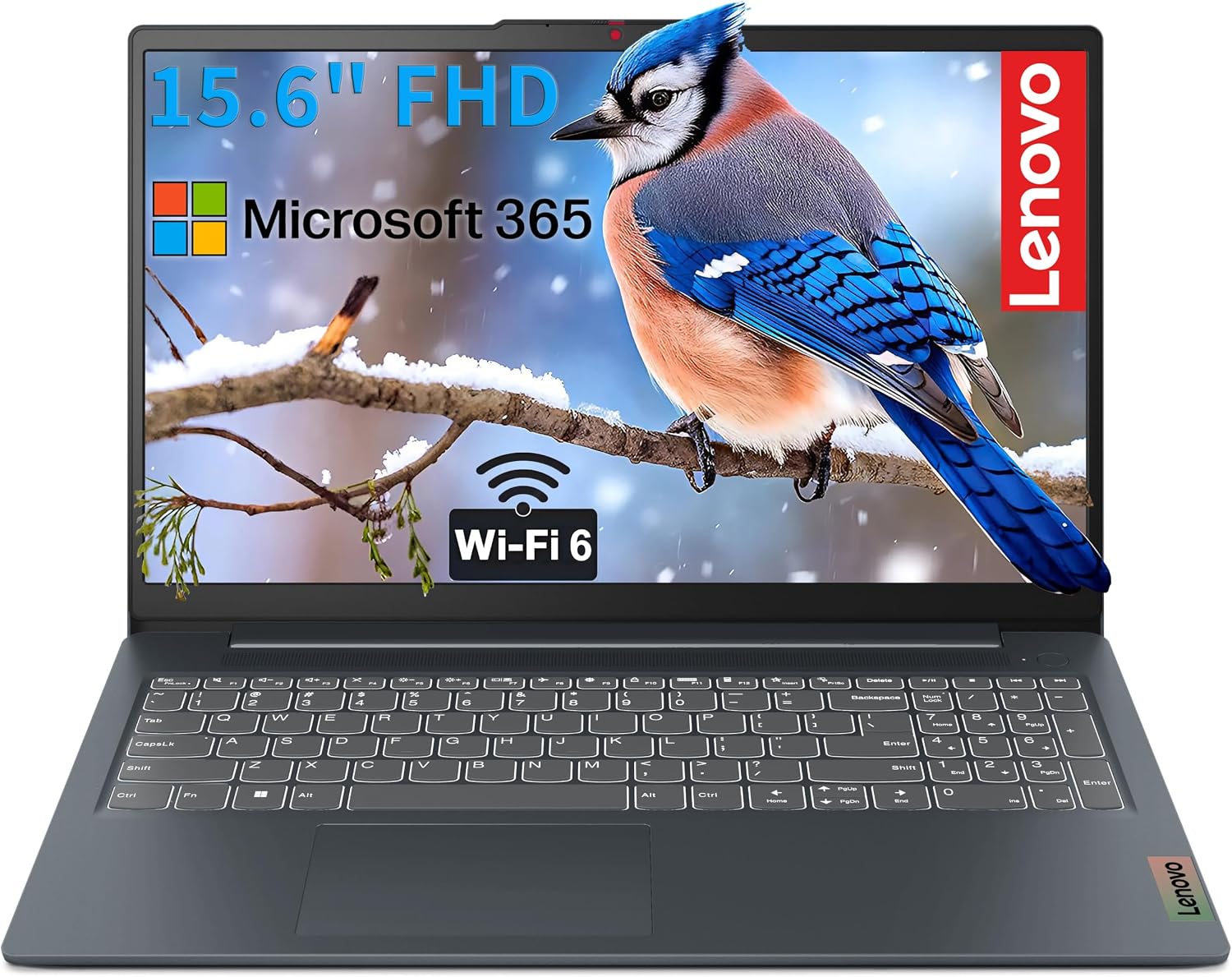 Budget Essentials
Best Price: $319.00at AmazonSave 41% (was $539.00)
Processor & Specs: FHD Display · 16GB RAM · Quad/Hexa-Core
Portability & Battery: 6 to 8 hours · 3.7 lbs
Memory & Storage: 16 GB RAM · See retailer specifications
Operating System: Windows 11 Home / Copilot+
Work & Study Fit: A standout budget value with a full 16GB of RAM at under $350, eliminating the memory bottleneck common in entry-level laptops.
2. The Mainstream Work & Study Sweet Spot ($650 – $899)
The optimal balance of battery life, build quality, multi-tasking speed, and modern Copilot+ AI integration:
3. Heavy Multitasking & Power Workstations ($900 – $1,250)
For engineering, data science, virtual machines, and power users who require massive memory and multi-threaded throughput:
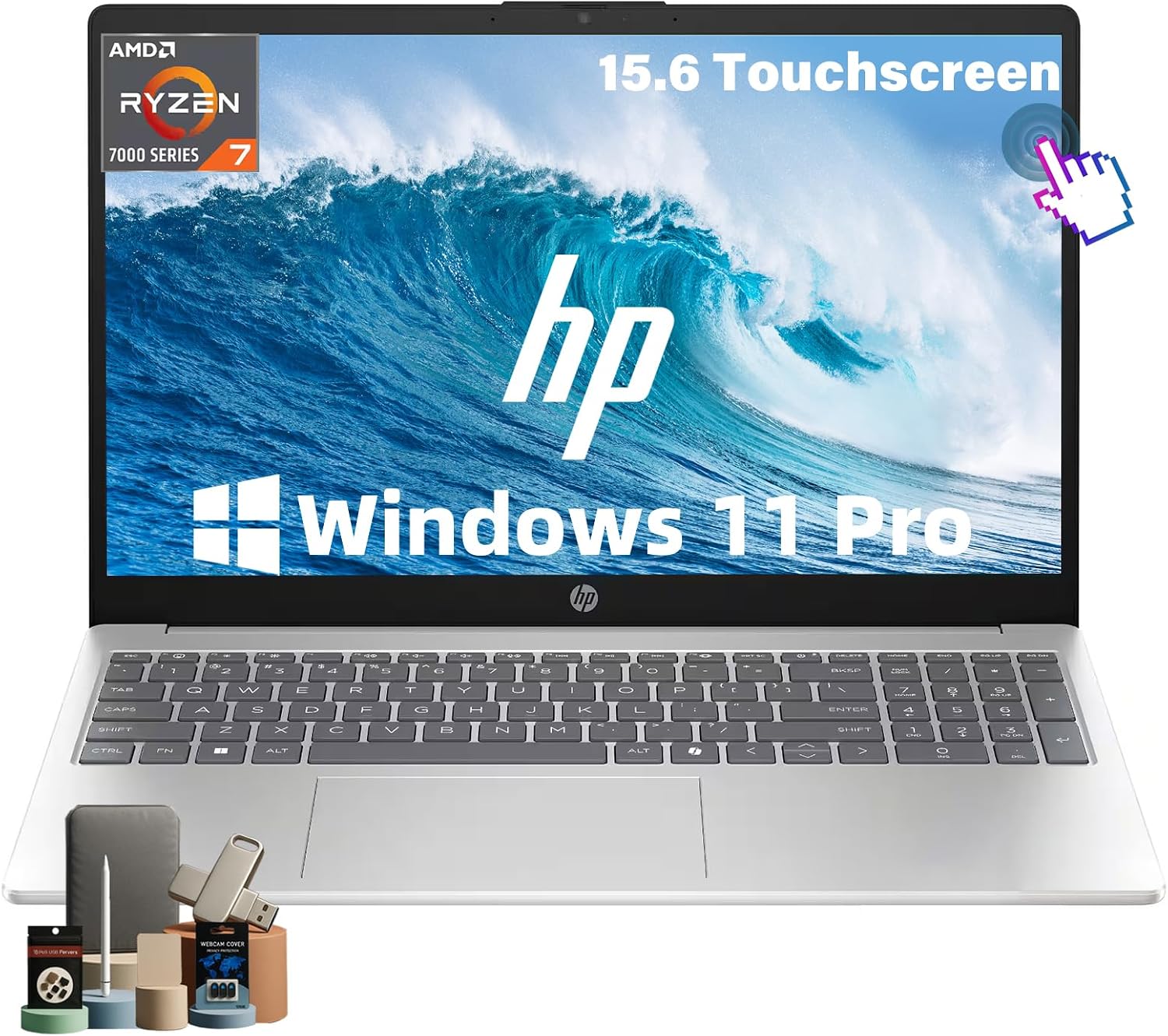 Power Workstation
Best Price: $949.00at AmazonSave 41% (was $1,599.99)
Processor & Specs: 15.6" Touch · AMD Ryzen 7 · 32GB RAM · 1TB SSD
Portability & Battery: 8 to 12 hours · 3.8 to 4.2 lbs
Memory & Storage: 32 GB RAM · 1 TB SSD
Operating System: Windows 11 Home / Copilot+
Work & Study Fit: Equipped with a massive 32GB of RAM and a 1TB SSD, completely eliminating slowdowns when running multiple IDEs, local databases, and large Excel macros.
The Pre-Checkout Work & Study Checklist
- 1. Verify your required software: Check course syllabi or IT requirements for exam proctoring engines (Respondus, Safe Exam Browser), corporate VPNs, and virtualization support before opting for Arm (Snapdragon X).
- 2. Confirm soldered RAM capacity: Ensure you buy at least 16GB unless your budget is strictly under $350. Remember that 85%+ of modern laptops cannot be upgraded later.
- 3. Insist on 300+ nits and 16:10 aspect ratio: Avoid 250-nit 16:9 screens that cause glare and require constant vertical scrolling.
- 4. Check for USB-C Power Delivery: Ensure the laptop charges over USB-C (65W+) so you can pack a single compact GaN charger for all your devices.
- 5. Compare cross-retailer prices: Check Tech Deal Compass to compare prices across Amazon, Best Buy, and Newegg—major retailers frequently discount identical configurations by $100 to $300.